Share Extension
Save text, URLs, and images from Safari, social apps, or anywhere iOS lets you share.
Private clipboard for iPhone & iPad
Save the things you copy, find them when you need them, and paste from any app without breaking your flow.
Free to start iOS 17+ Local-first by design
 LOCAL-FIRST
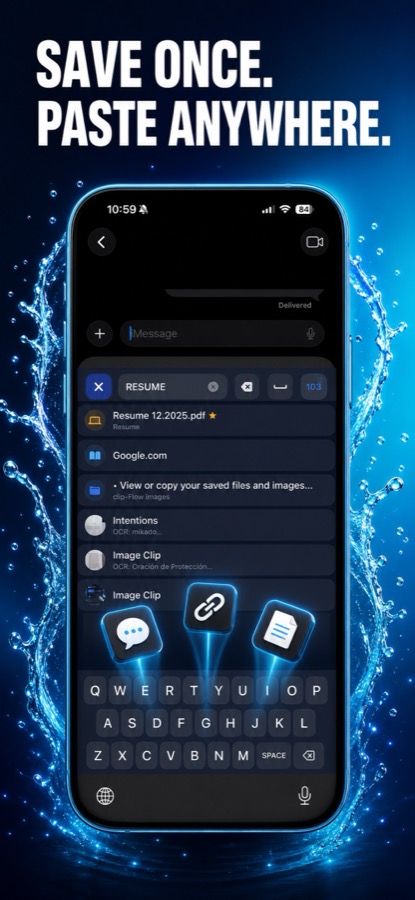 ⚡ QUICK PASTE
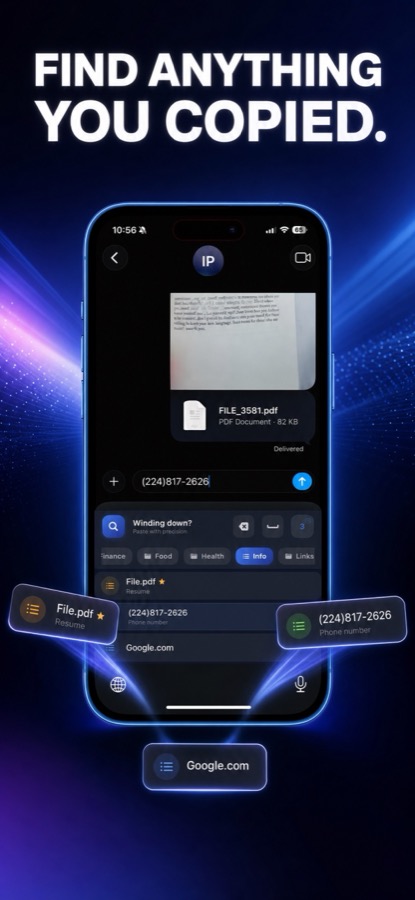 🔍 SEARCH & OCR
REAL APP CAPTURE
See how Clip Flow works in practice: open the keyboard, find any saved clip, and paste it directly into your conversation.
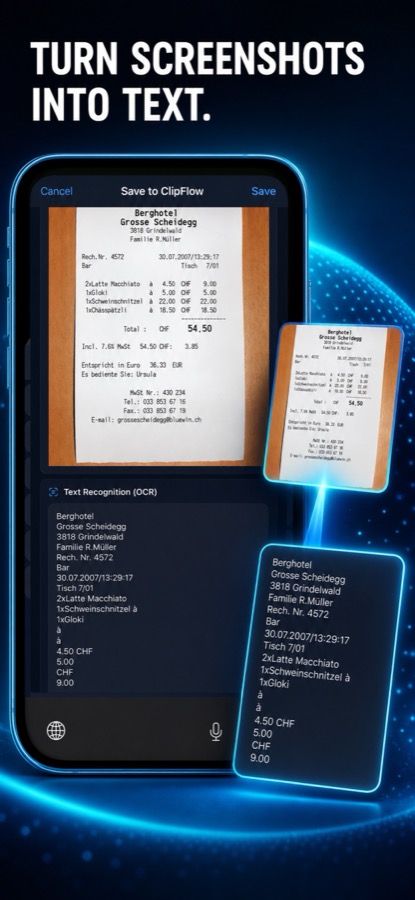
THE USEFUL EXTRAS
Designed for the small moments that add up: a link, a code block, a screenshot, or the phrase you use every day.
Save text, URLs, and images from Safari, social apps, or anywhere iOS lets you share.
Find content and descriptions quickly, then give categories custom icons so your library feels like yours.
Bring your clips into any text field without switching back to Clip Flow or losing your place.
START HERE
Open the app once, then add the extensions that fit the way you work.
Clip Flow initializes its local database and gives you a place to organize the things you copy.
Use the keyboard extension for saved clips and the Share Extension for things you discover.
Clip Flow is built around a local library, so your everyday clipboard history remains on your iPhone or iPad.
NEED A HAND?
Most issues come down to an extension permission or reopening the main app after a restart.
Toggle Full Access off and back on in Settings → General → Keyboard → Keyboards → Clip Flow. Also make sure the main app has been opened at least once after a device restart.
Tap the Globe icon in the bottom-left corner of the Clip Flow keyboard to cycle through your enabled keyboards.
Clip Flow can handle thousands of clips, but large images take more space. Delete clips you no longer need from the list to keep the library light.
KEEP YOUR FLOW
GET STARTED
Start with the app, then add the keyboard or Share Extension when you want Clip Flow closer at hand.
Need more help? Contact Ivan Petrov with a bug report or feature request.